Order overview
Read here about the order overview in Xena and the content in the various tabs.
To get an overview of your orders in Xena, use the order overview, which contains some of the most commonly used groupings and various search and filter options depending on the type of orders you are working with.
When you create an order in Xena, it automatically starts in open status. It remains open until all lines have been deleted or invoiced, after which the order status is automatically set to closed.
Status Closed: Everything on the order has been invoiced.
Status Open: There are lines that have not yet been invoiced.
Xena also uses various order status codes created per account. You can change these codes at any time and they help you sort and filter your orders.
➡️ Read more about order status
Delivered/Not delivered
On the All orders and Invoice list tabs you can choose whether to view All, Delivered, or Not delivered orders. An order is considered delivered if a delivery note or invoice has been created for all lines on the order.
Delivered: A delivery note or invoice has been created on the order.
Not delivered: Neither a delivery note nor an invoice has been created yet.
All: Shows all orders regardless of delivery status.
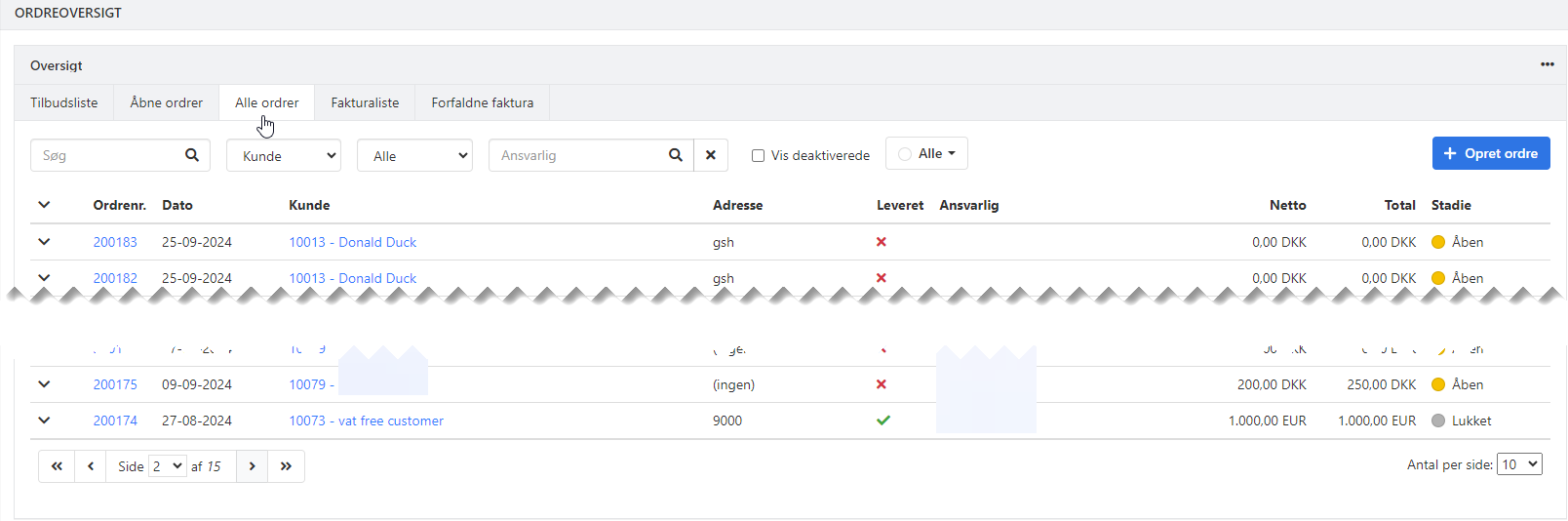
Tabs in the order overview
To make navigation in Xena easier, tabs have been created with different groupings of orders based on order stages, order status, quoting, invoicing, etc. Depending on what is displayed on the tab, different print, search, and filter options are available.
The content and options for each tab are described below.
Offers/Estimates
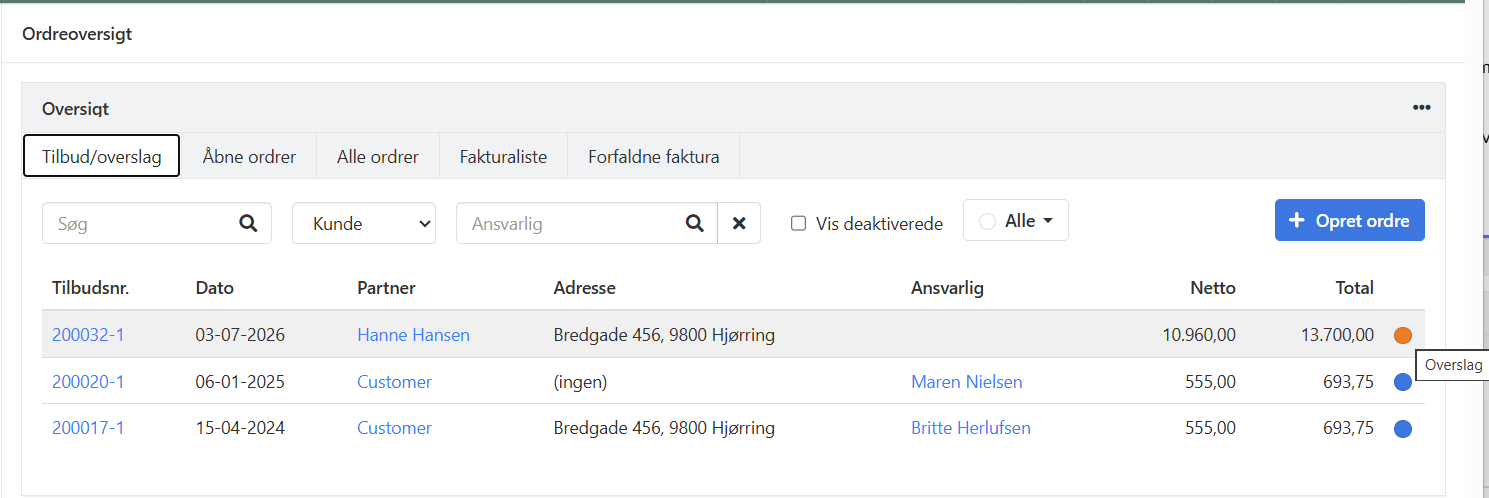
Shows orders where an offer or estimate has been created. A new column has been added at the far right of this tab, showing the order status type. This lets you see directly in the overview whether an offer or estimate has been sent on the order.
If you want to use the column for filtering, you can create one order status for offers and one for estimates. When you create the document, select the corresponding order status — you can then filter in the overview and see exactly what has been sent to which customers.
You can also create other order statuses, e.g. Accepted offers and Declined offers, and update the status on the order as you go, so you always have an overview of your active offers and estimates.
➡️ Read more about creating offers in Xena
Open orders
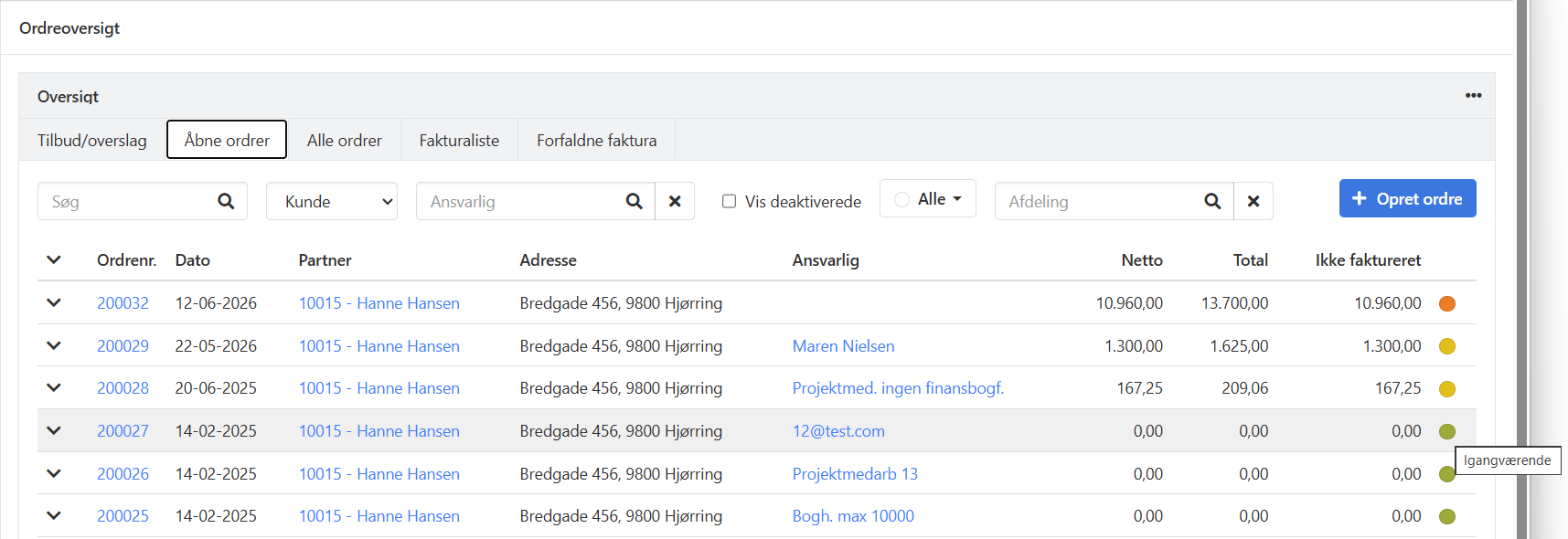
This tab shows all orders with open status, i.e. orders that have not yet been fully invoiced. Here you can search by responsible or use free text search in the search field. You can also filter by order status.
Which other fields can be searched is described in this guide under searching for orders.
All orders
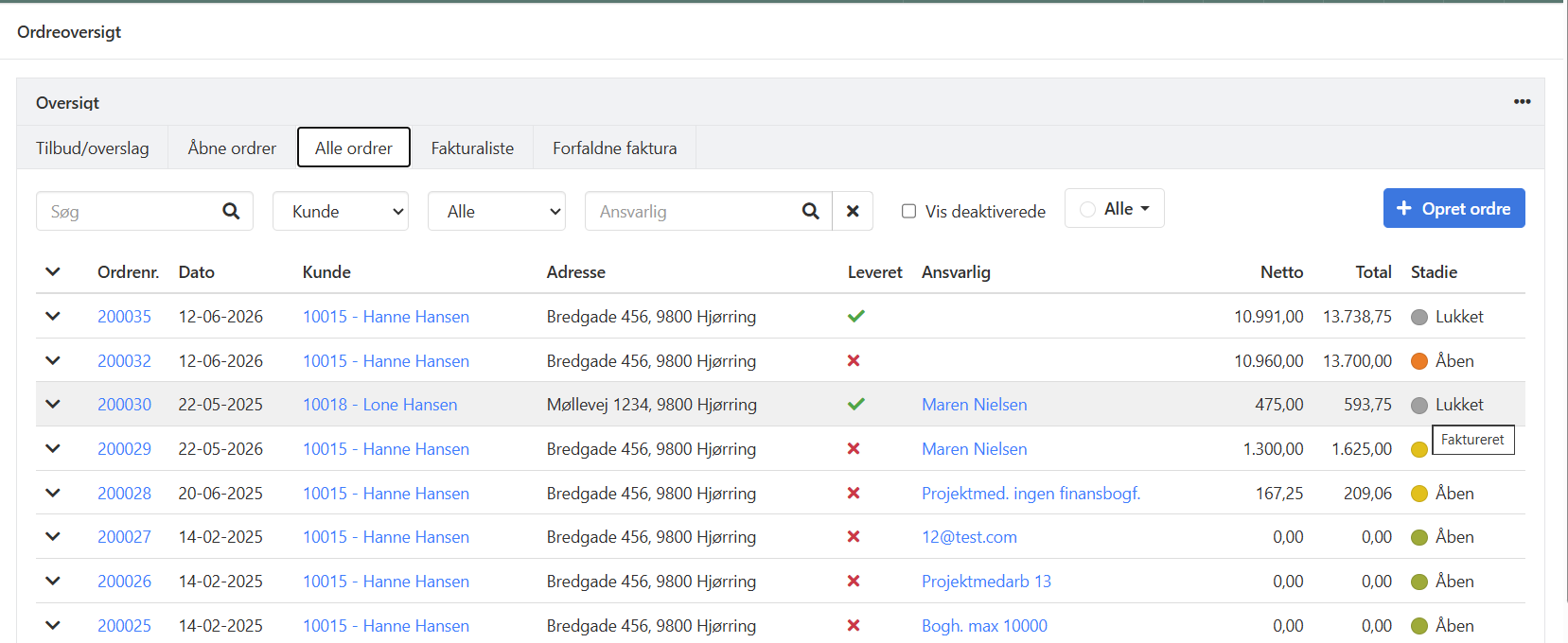
Here you see all your orders, split between orders for customers and for suppliers. You can filter by delivery status and order status, and search by responsible or use free text search in the search field.
Which other fields can be searched is described in this guide under searching for orders.
Invoice list
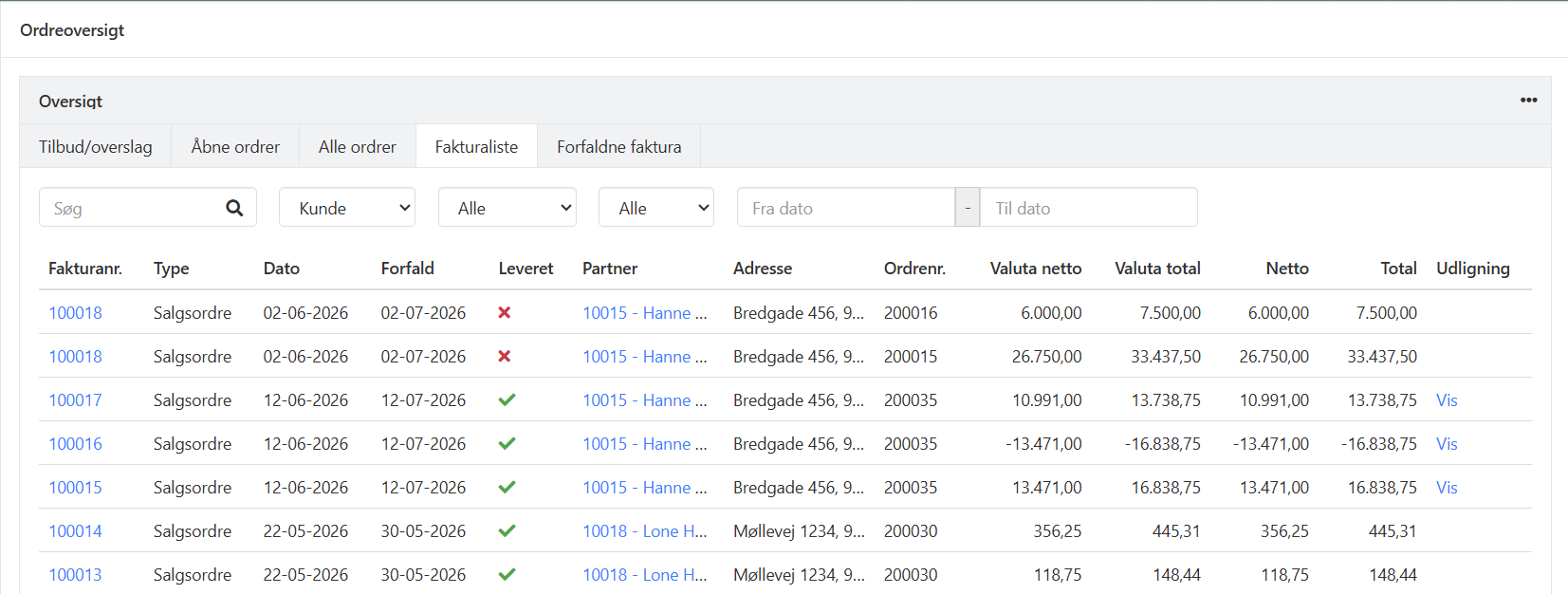
This tab shows an overview of all invoices you have created via an order. The leftmost column is the invoice number, but even though the order number is not shown in the overview, you can still search for a specific order number in the Search field.
If you only want to see invoices created in a specific period, enter a date filter at the top.
The overview can be printed, sent by email, or downloaded as a CSV file.
Overdue invoices
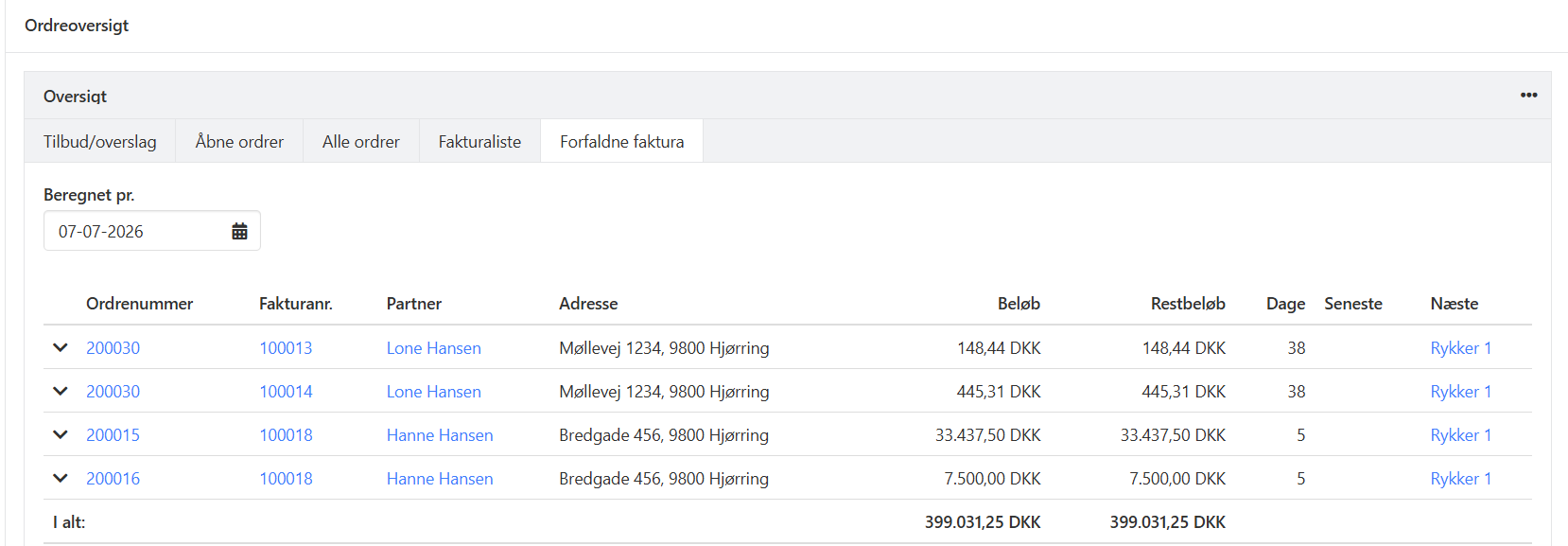
An overview of your unpaid invoices that are overdue, based on the invoice due date. At the top you can change the Calculated as of date, for example to see invoices that were overdue on the last day of a month.
This overview is the same as the one found under Sales > Reminders > Reminder overview.
➡️ Read the guide on creating reminders
The overview can be downloaded as a CSV file.
- Updated