Ledger reports
This guide gives you an overview of Xena's ledger reports – Summary, Fiscal balance, Specifications, Posts, VAT reconciliation and Cost posts – and shows you how to find and use them.
You can find all reports under Ledger > Ledger reports.
All reports can be viewed on screen, printed, downloaded, or sent by e-mail using the Report button at the bottom of the window.
Summary
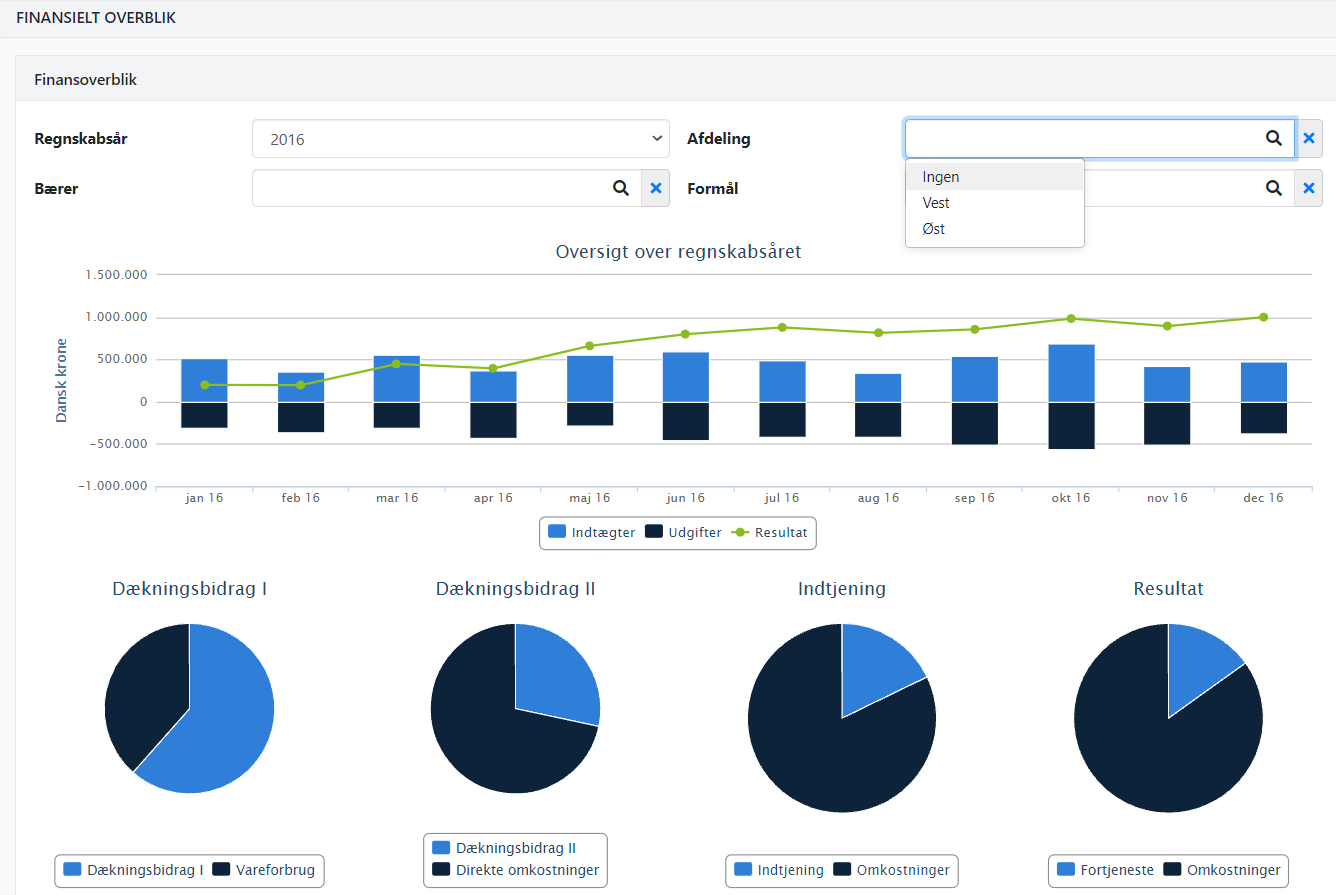
If you want a quick insight into the company's results, go to Ledger > Summary.
At the top, a graph is shown with:
Light blue bar = Revenue in the current month
Dark blue bar = Costs in the current month
Green line = Accumulated result (year to date)
At the bottom of the page, four key figures are shown as charts:
Contribution margin I = Revenue minus cost of goods sold
Contribution margin II = Result after direct costs (cost of goods sold, personnel costs and selling costs)
Earnings = Result before financial items (incl. depreciation, group result, financial items and tax)
Result = Total result
Fiscal balance
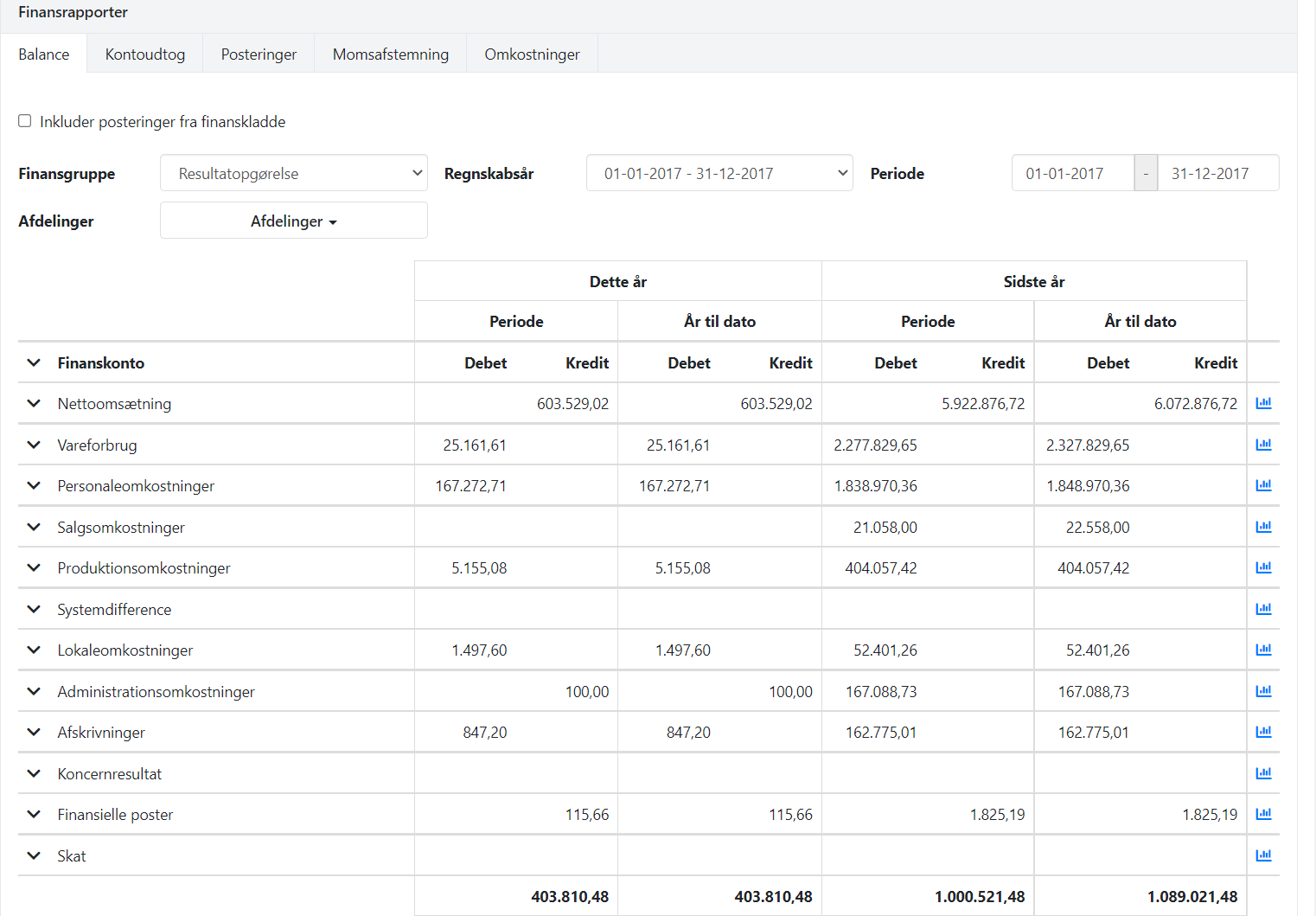
The Fiscal balance report shows the company's balance. When you open the report, you can choose between:
Income statement
Assets
Liabilities
You can include entries from the ledger that have not yet been posted. Do this by ticking the field Include entries from the ledger. Only ledger entries where debit and credit balance are included.
⚠️ Note: When you include entries from the ledger, the calculated VAT amounts per VAT code will not appear in the VAT group. The amounts are, however, included in the VAT payable total.
If you work with dimensions, you can filter the report so that only the desired dimensions are included.
➡️ Read about using dimensions
Specifications
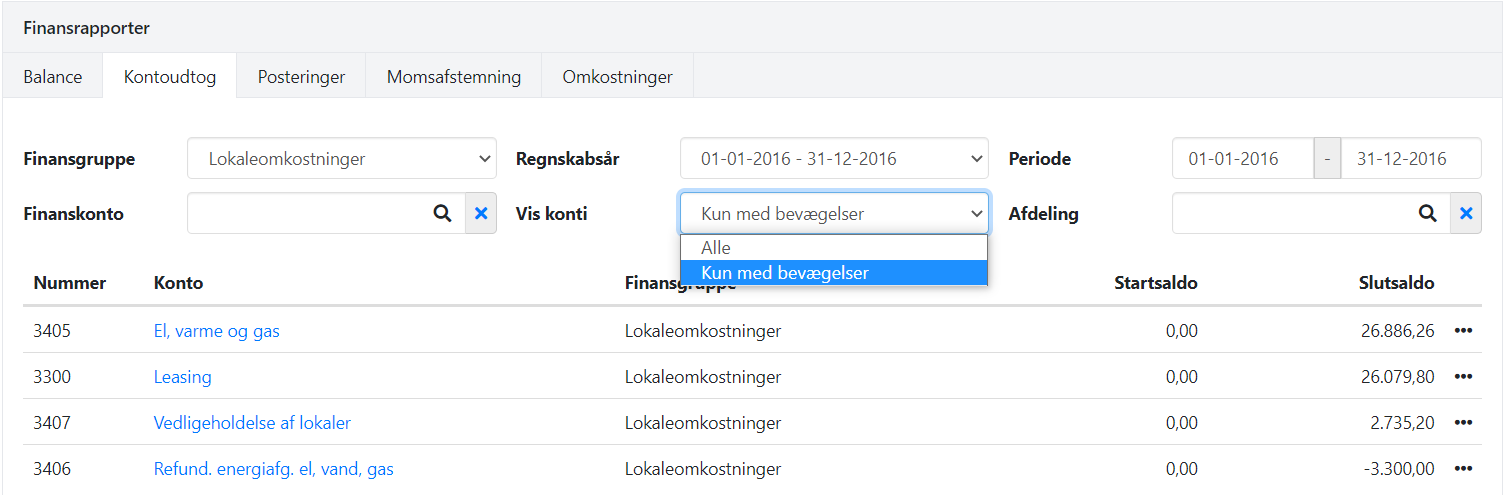
The Specifications report gives an overview per ledger account.
At the top you can filter by, for example, financial group or ledger account. You can also choose to show only accounts with movements in the selected period.
On screen, one line per ledger account is shown (opening and closing balance). When you print the report, the underlying entries for each account are shown.
Posts
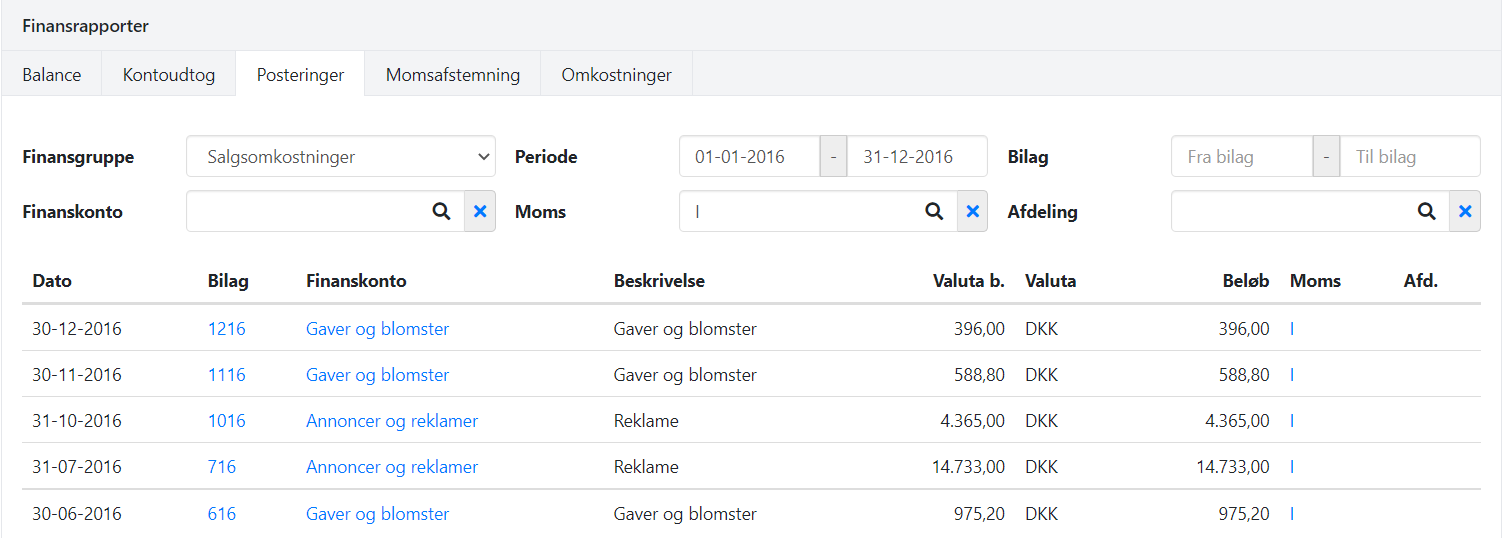
The Posts report shows posted entries across ledger accounts.
At the top you can filter by several criteria, e.g.:
Entries with a specific VAT code
Entries within a specific financial group
VAT reconciliation
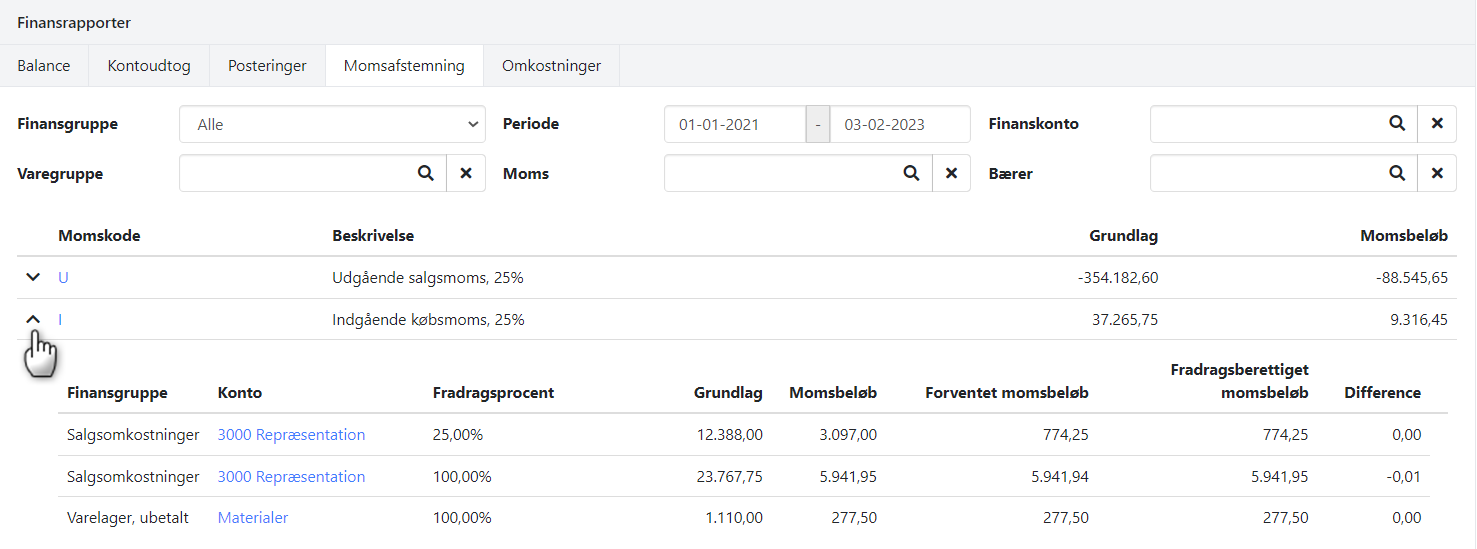
The VAT reconciliation report shows the VAT codes that have entries in the selected period.
For each VAT code, the following is shown:
The basis for the VAT amount
The posted VAT amount
By expanding a VAT code, you can see details per ledger account, incl. any differences between posted and expected VAT.
⚠️ Note: If a ledger account is posted with two different VAT rates, the account will appear twice in the report.
Cost posts
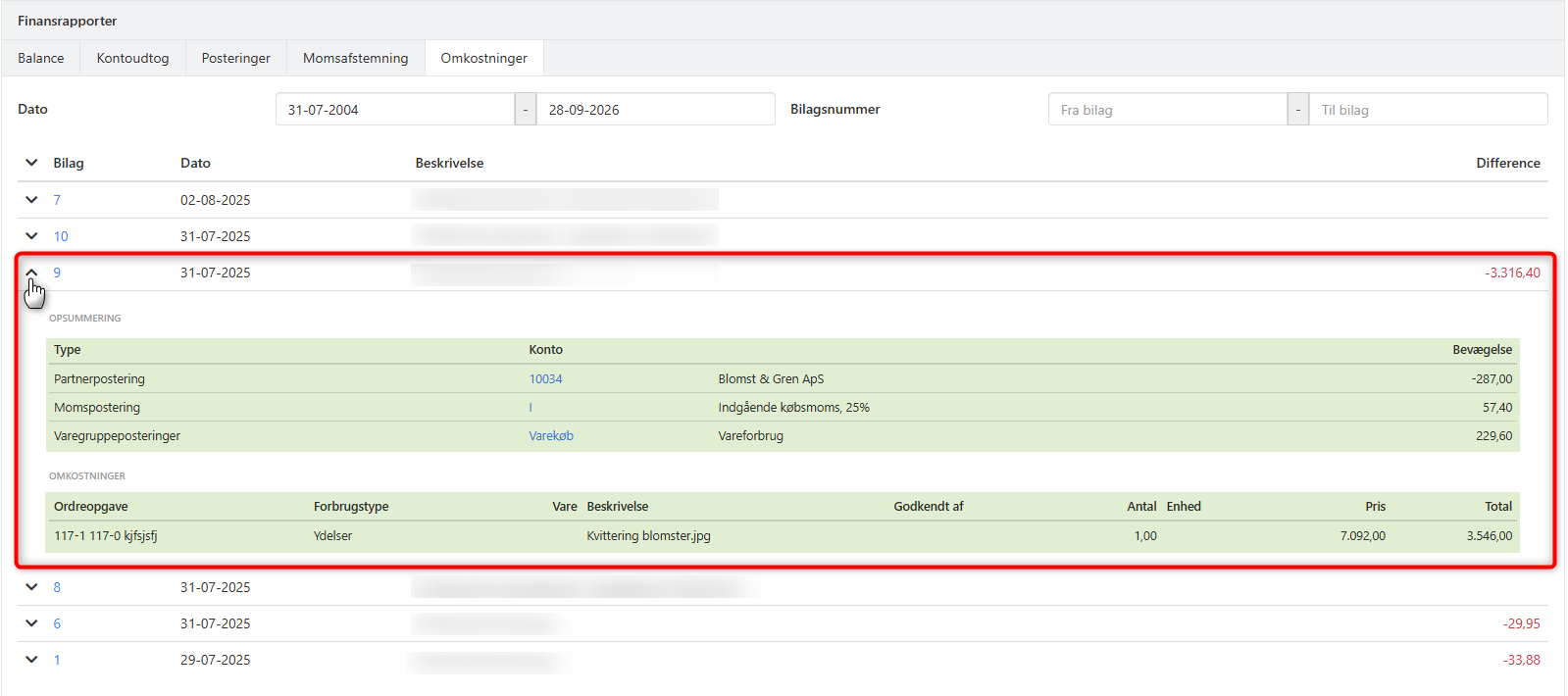
The Cost posts report shows vouchers with associated order costs in the specified period.
Each voucher can be expanded so you can see the full posting information, incl. the registered costs.
The report also has the Difference column, which shows the difference between the financial entries and the order cost entries for the individual voucher. This makes it easy to spot discrepancies between the two types of entries without having to compare them manually.
If the value in the Difference column is not 0, it is highlighted in red. The Difference is included both when the report is shown on screen and when it is exported to CSV or PDF.
➡️ Read more about automatic reporting
- Updated